Sign, Share & Download Reports
Regenerate, sign electronically, add addendums, share, and download with or without header/footer.
Updated
Report Regeneration, Signing, Downloading & Sending
Recreating and signing your report:
- Once the report has been created, regenerate it at any time by clicking the "Regenerate" button located next to the Sign button.
- When your final report is ready, click the "Sign" button.
- A pop-up window will appear, prompting you to enter your electronic signature details.
.webp)
- After signing, view the signed report by scrolling to the bottom of the document.
.webp)
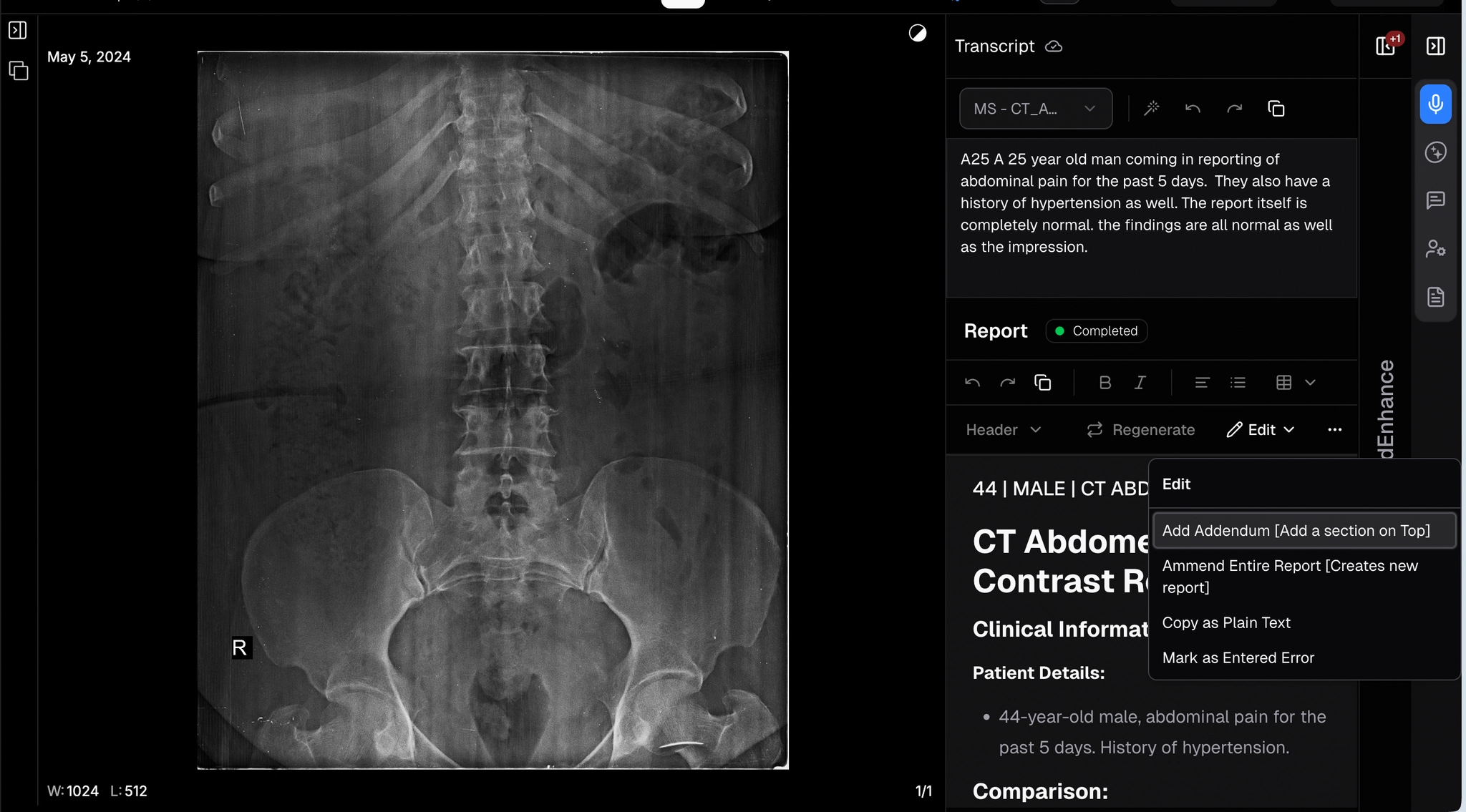
Adding an Addendum After Signing
- Once your report is signed, the Sign button changes to Edit.
- Next to the Edit button, click the three dots (⋯) to open the dropdown menu.
- Select Add Addendum (or another option from the menu).
Share and Download your report:
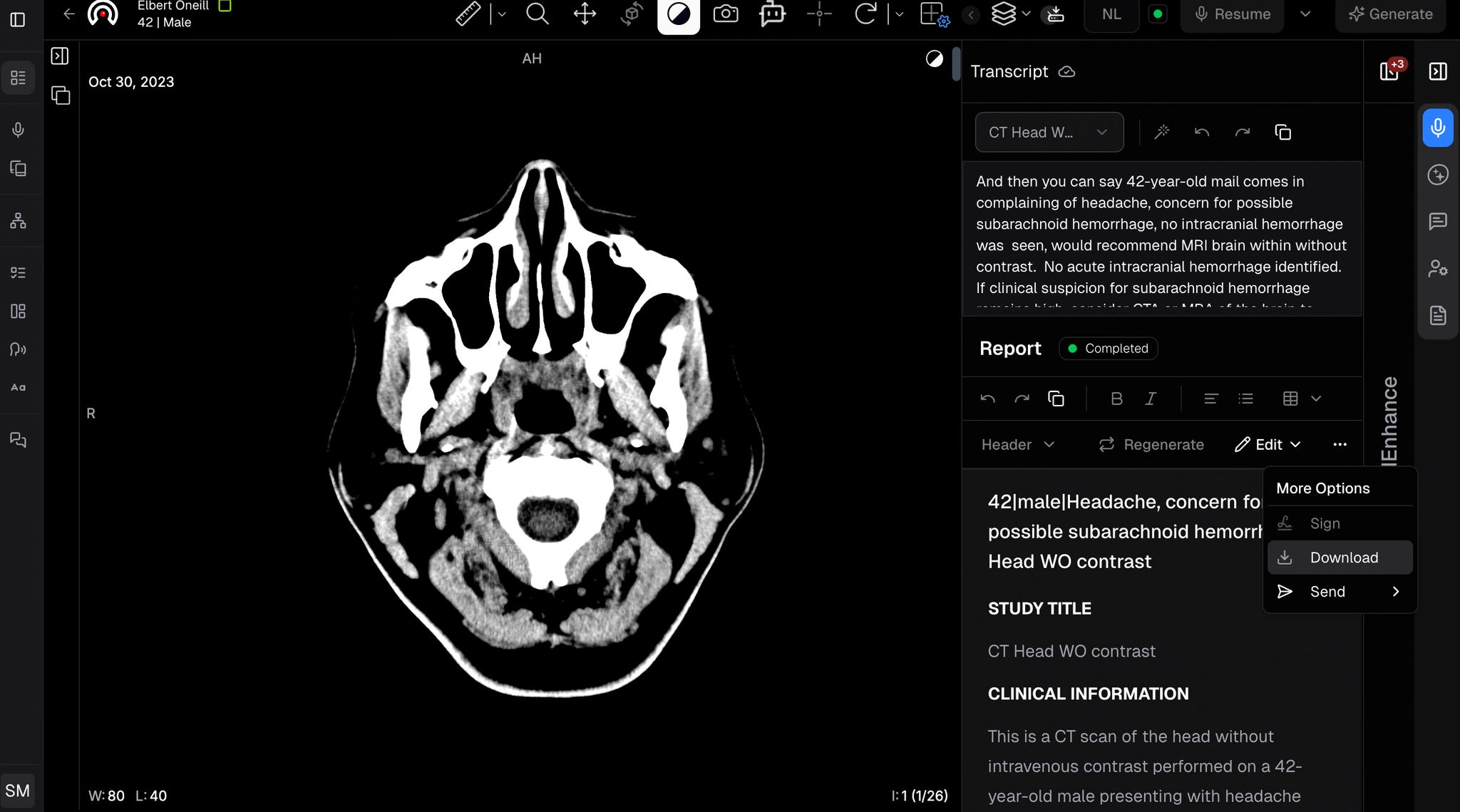
- Next to the Edit button, click the three dots (⋯) to open the dropdown menu.
- Click Send.
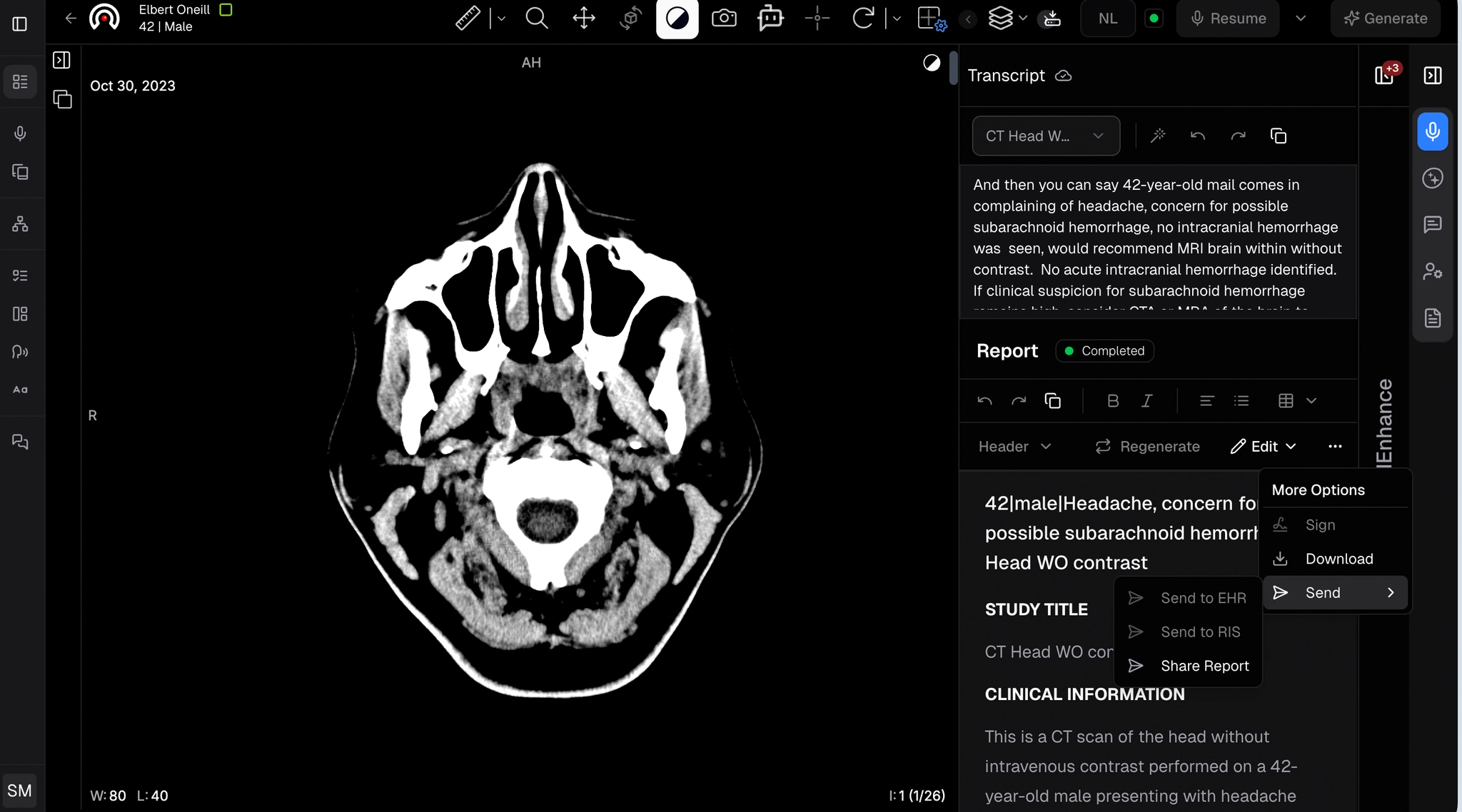
- Click Share Report. A popup will display the available platforms.
.webp)
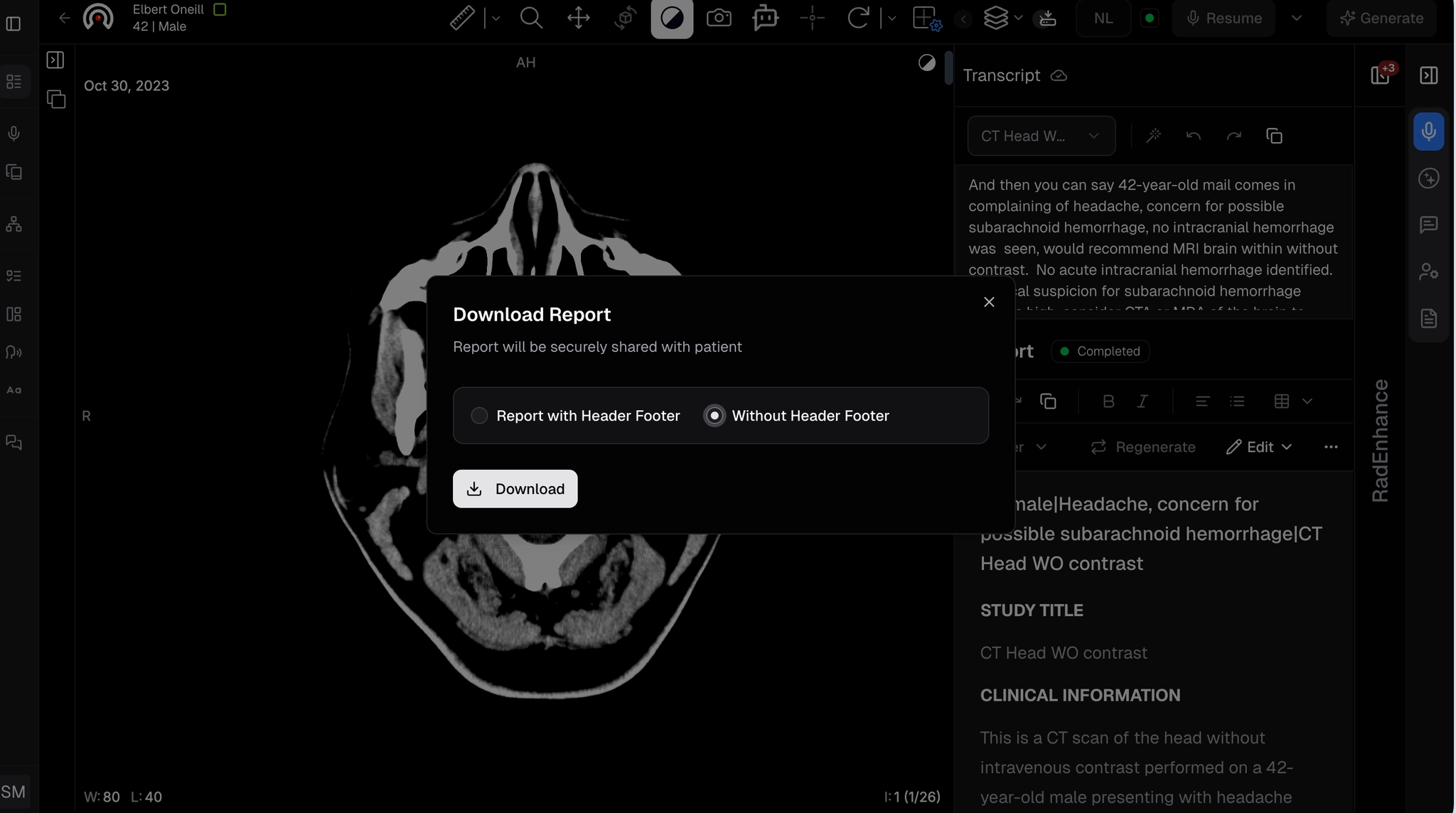
- To download the report, click the "Download" button.
- Choose your preference: With header footer or Without header footer.
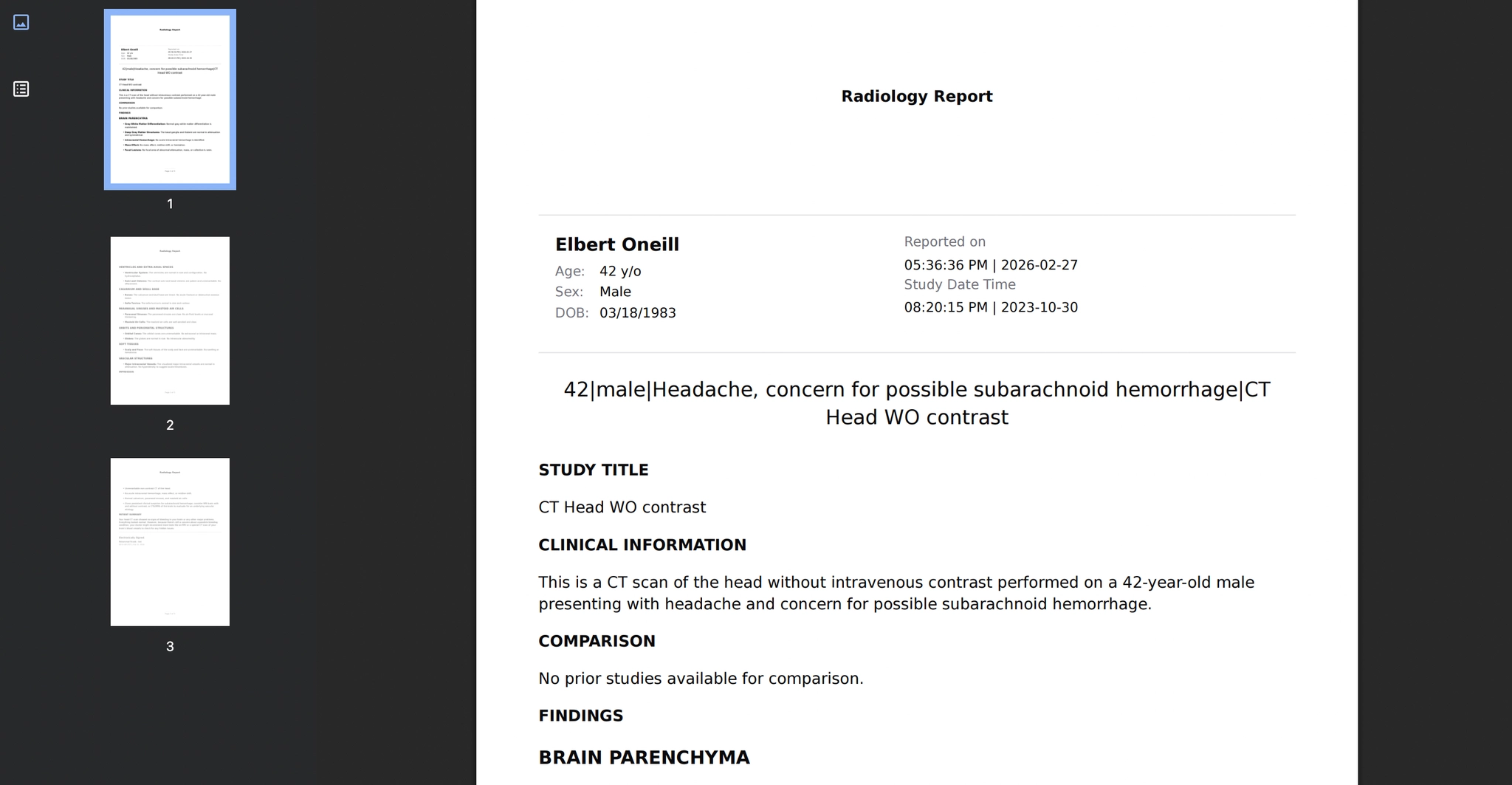
- Press Download. The file will download automatically to your device.