RadioView.AI™ docs
AI-driven radiology reporting: the DICOM viewer, AI reports, RadEnhance, custom templates, team collaboration and direct PACS integration.
24guides
- 8 sections
- Updated July 3, 2026
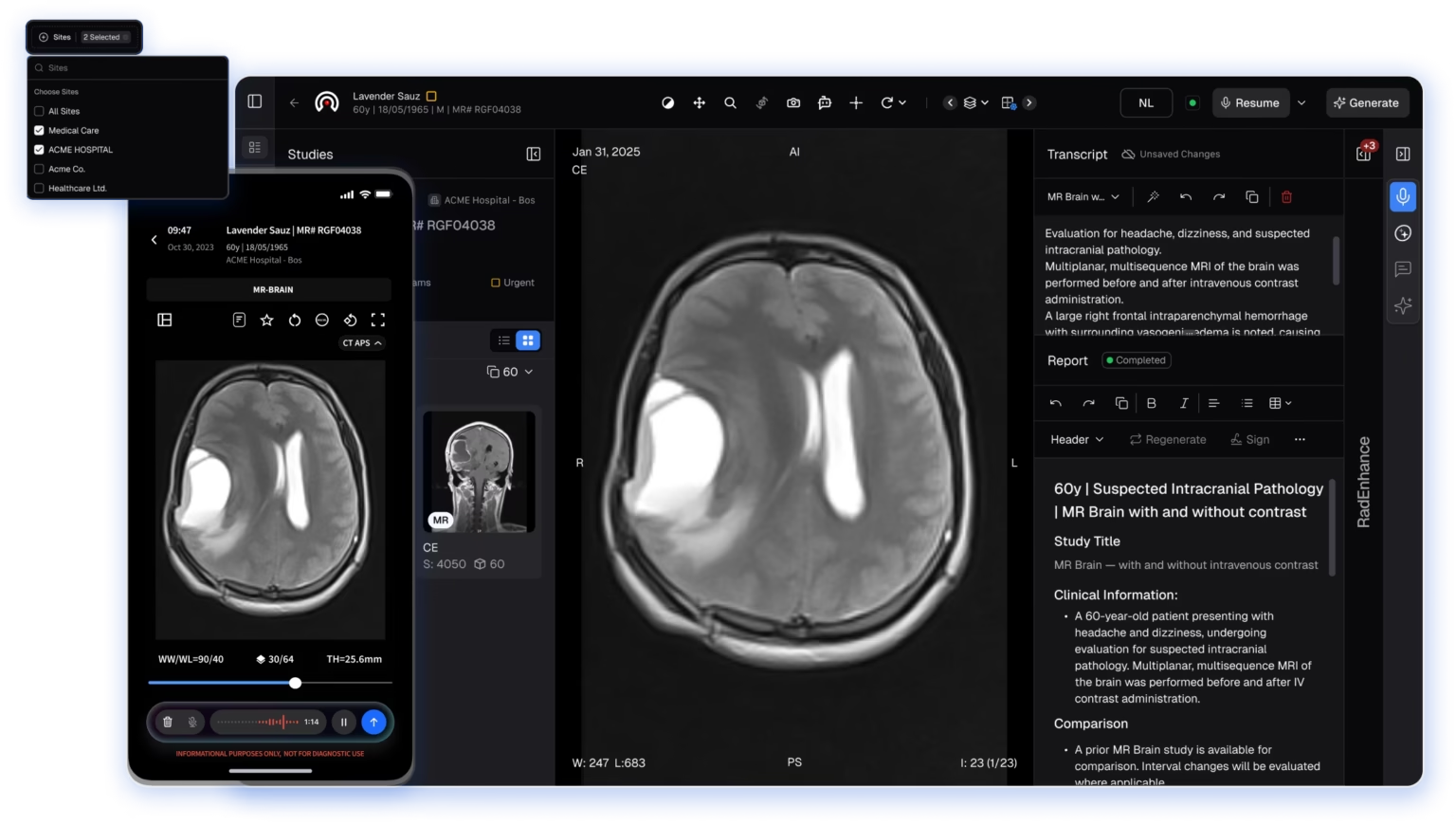
What the guides cover
RadioView.AI is a cloud-based enterprise imaging platform with an AI-powered DICOM viewer. These guides take you from your first sign-in through reporting in AI Viewer, Scribe Mode and Companion Mode, to report templates, team access and PACS/DICOM integration across local, cloud and multi-site systems.
AI outputs support, not replace, the interpreting radiologist's judgment. Review every AI-generated report before you sign it.
Get StartedSign up, activate your account, and set your specialty on first login.2 guidesAI ViewerSelect studies, generate structured AI reports, apply RadEnhance suggestions, run AI measurements, then sign, share and download.8 guidesScribe ModeChoose a template, dictate with real-time transcription, refine your report and export it.4 guidesCompanion ModeFilter PACS studies by facility and report on them with templates or manual reporting.2 guidesCustomization StudioCreate, import and manage report templates, and add custom vocabulary for dictation.4 guides
Start and get the app
Every guide, in order
Read them top to bottom the first time: each guide hands you on to the next.
- Create Your AccountSign up, activate via magic link, verify with OTP, and set your password.Get Started
- Log In & PersonalizeFirst login, the welcome screen, and one-time specialty/subspecialty selection.Get Started
- Select StudiesOpen AI Viewer and pick the study to review.AI Viewer
- Generate AI ReportsChoose a template, dictate or type with ARRG, and generate a structured report.AI Viewer
- RadEnhance Smart SuggestionsApply Critical/Important/Recommended suggestions to the transcript before generating the final report.AI Viewer
- RadChat in AI ViewerAsk radiology questions in context from the AI Viewer sidebar.AI Viewer
- AI MeasurementsSegment lesions with point/box tools, get width/height/depth/volume, and add results to the report.AI Viewer
- AI ExtractPull structured data and weak labels from a report and export to CSV.AI Viewer
- Manual Reporting in AI ViewerSwitch to a workstation-style manual report with images alongside the editor.AI Viewer
- Sign, Share & Download ReportsRegenerate, sign electronically, add addendums, share, and download with or without header/footer.AI Viewer
- Choose a TemplateBrowse the template library, search, and favorite the ones you use most.Scribe Mode
- Record & Generate a ReportDictate with real-time transcription, stop recording, and generate the report.Scribe Mode
- Refine Your ReportFix grammar and structure with the magic wand; undo, redo, and copy.Scribe Mode
- Manual Reporting in Scribe ModeType or paste a report, add headings and tables, sign, and export.Scribe Mode
- Report on PACS StudiesFilter studies by facility and report on them with templates.Companion Mode
- Manual Reporting in Companion ModeSwitch a Not Started study to manual reporting; signing marks it Completed.Companion Mode
- Create a TemplateBuild a report template and fix formatting with Process Template.Customization Studio
- Manage TemplatesDelete or duplicate templates from the dropdown menu.Customization Studio
- Import a TemplateUpload existing templates, save to drafts, and format them.Customization Studio
- Custom VocabularyAdd medical or custom terms so dictation recognizes them in Scribe Mode.Customization Studio
- Share Access with Your TeamInvite members, confirm two-way access, revoke, and approve requests.CareTeam Connect
- Configure a Facility IntegrationAdd a TCP/IP or TLS DICOM connection and point your local PACS at RadioView.AI.PACS/DICOM Integration
- Send & Verify StudiesTransmit studies to the RadReport AE Title and confirm they appear in Companion Mode.PACS/DICOM Integration
- Profile, Support & FeedbackComplete your profile, contact support, and submit feedback or feature requests.Profile & Support