Configure a Facility Integration
Add a TCP/IP or TLS DICOM connection and point your local PACS at RadioViewAI.
Updated
Configuring a Facility Integration
- Log in to RadioViewAI and click the "ConnectAI" tab from the left-hand navigation panel.
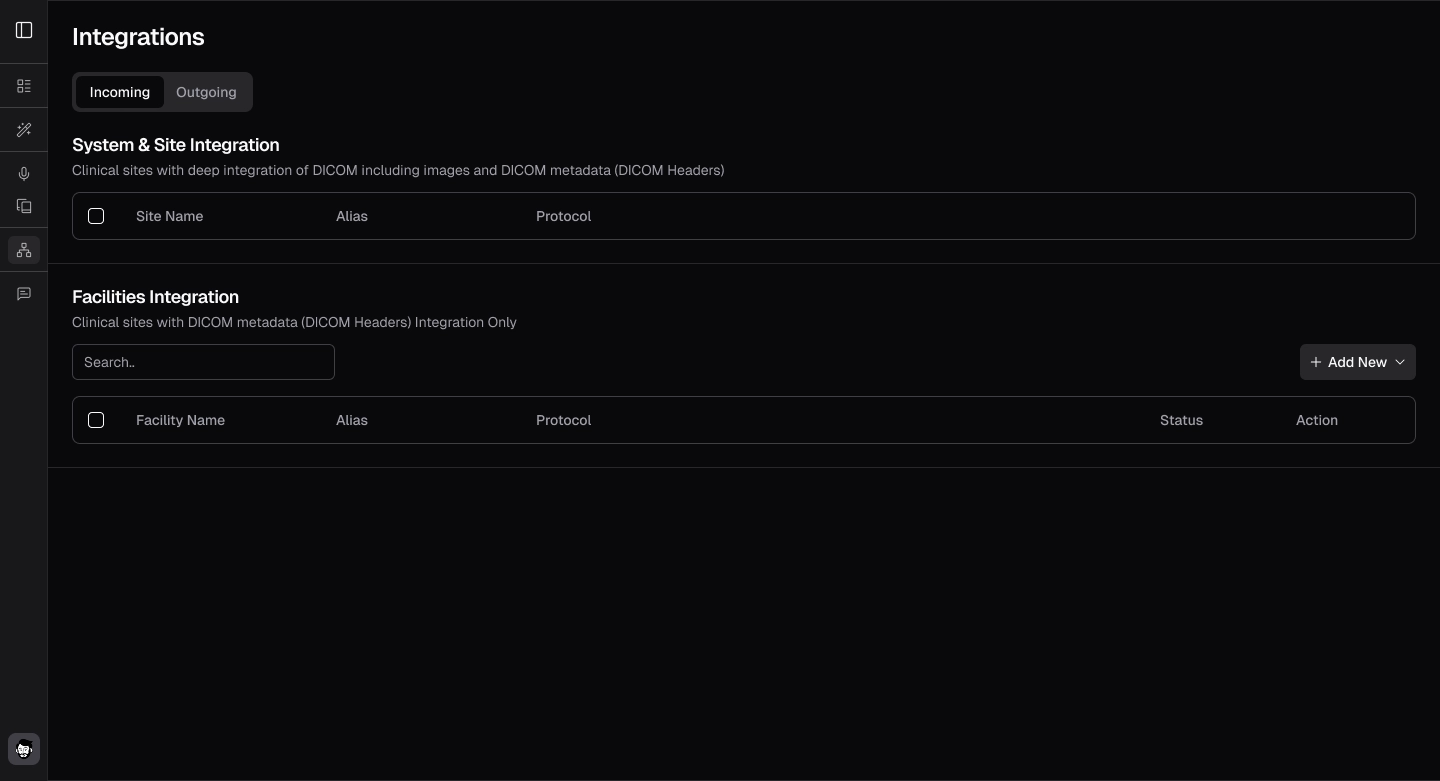
- Select the "Incoming" tab, then locate the "Facilities Integration" section.
- Click the "Add New" button in the upper right corner of the screen.
- From the dropdown menu, select "TCP/IP (Standard DICOM)".
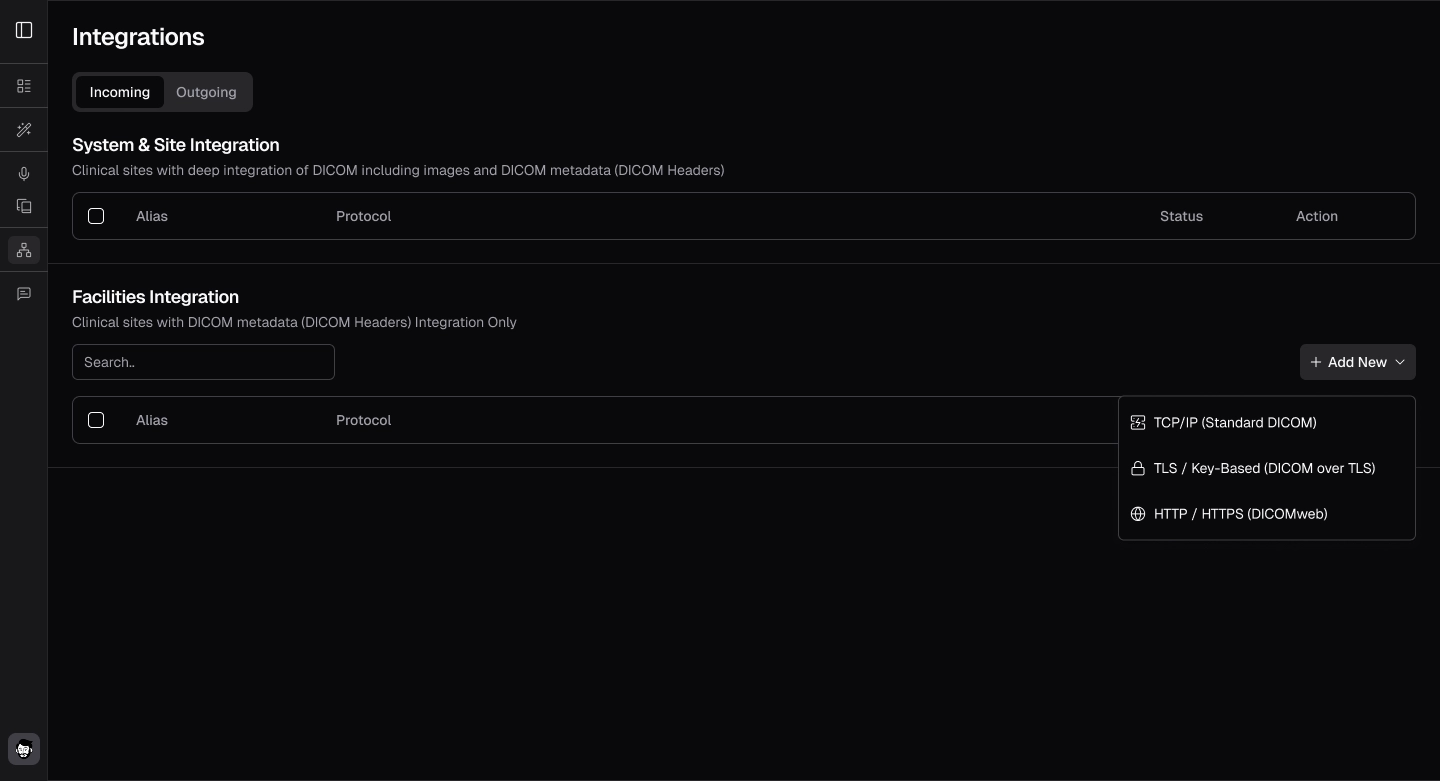
- A multi-tab form will appear for configuration:
- Connection: For configuring DICOM connection details
- Facility Details: For entering facility information
- Manager Details: For adding contact information
- In the Connection tab, enter your PACS details:
- IP Address*: The IP address of your PACS server
- Port*: The port number your PACS uses (e.g., 11112)
- AE Title*: The Application Entity Title of your PACS
- Institution Name*: A unique name for your institution, used to identify your DICOM files within RadioViewAI PACS
.webp)
.webp)
- Click "Continue" to proceed to the Facility Details and Manager Details tabs.
- Complete all required fields (marked with asterisks) in each tab.
- Click "Save Changes" after completing all sections to finalize your configuration.
Configuring your local PACS to send to RadioViewAI:
- Access the DICOM configuration or network settings area of your local PACS software.
- Add a new DICOM destination using the connection details configured above.
- Configure auto-routing to forward studies to the RadioViewAI AE Title (RadReport) based on modality, study description, or other criteria.
- Save the destination settings in your PACS.
Note
Consult your PACS vendor's documentation for specific instructions on setting up these configurations.