Log In & Personalize
First login, the welcome screen, and one-time specialty/subspecialty selection.
Updated
- After setting your password, log in to your account to get started.
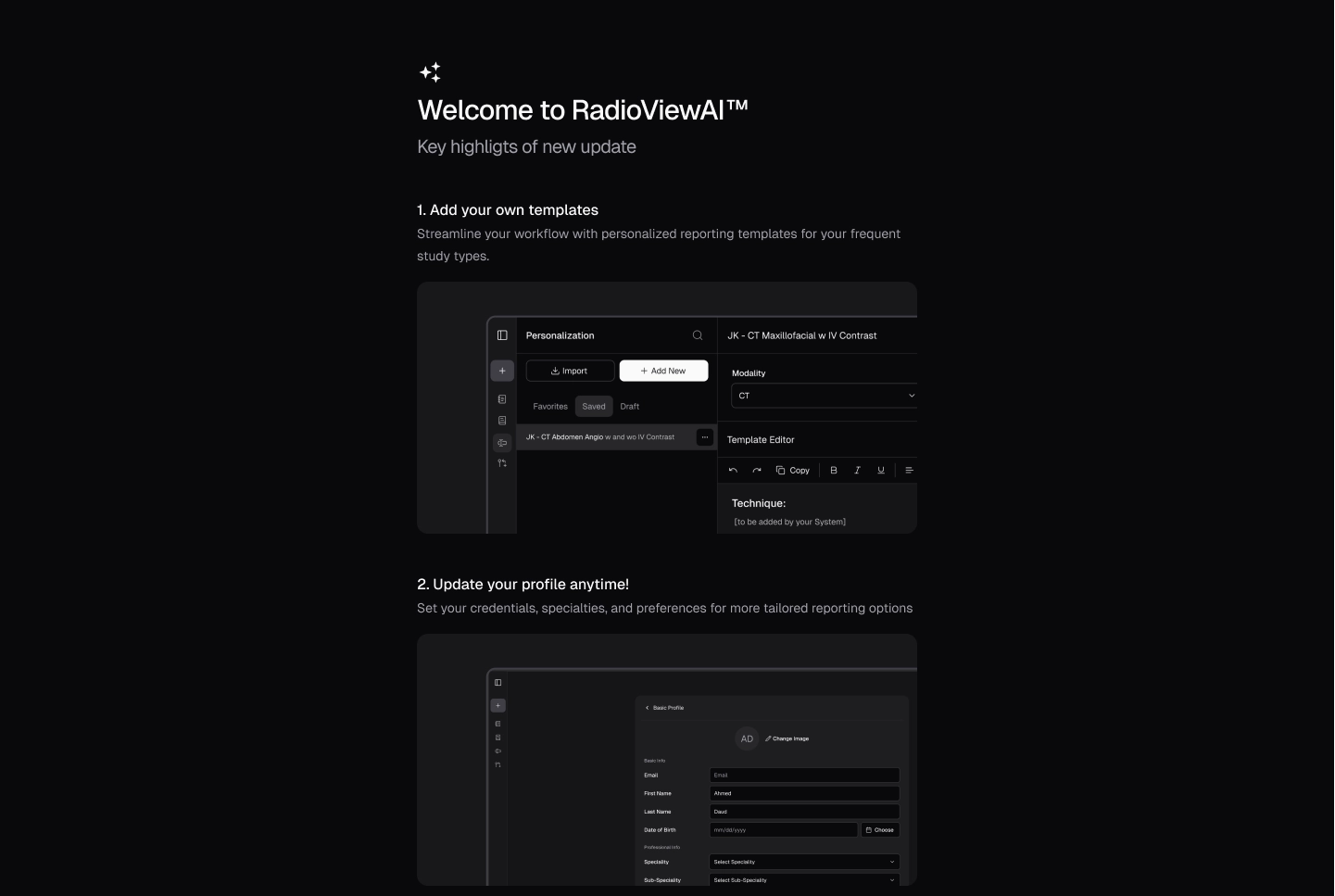
- After logging in, you will see the welcome screen.
- Tap "Continue to RadioViewAI" to proceed.

Step 2: Specialty Selection
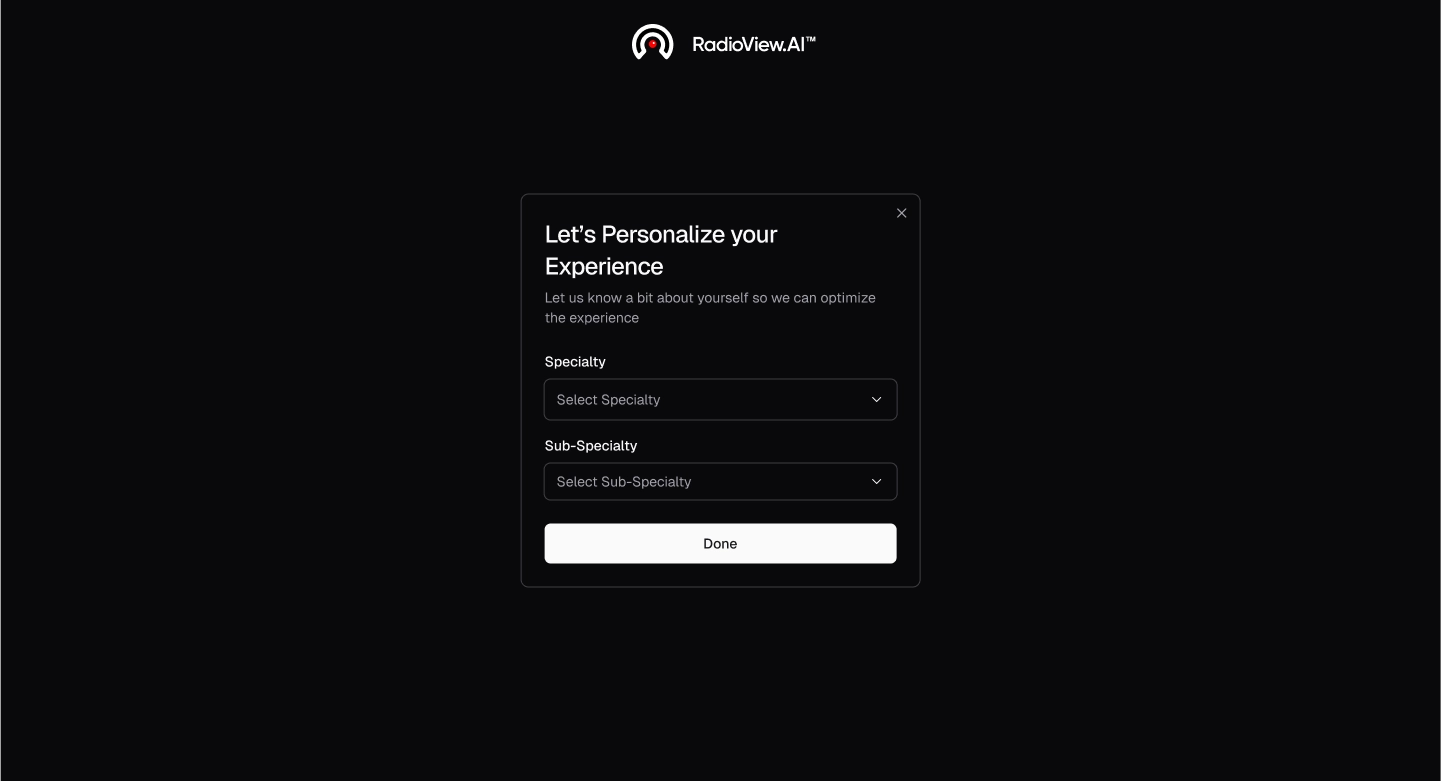
- A "Personalize Your Experience" pop-up will appear.
.webp)
- Select your specialty (single selection) and subspecialties (multiple selections).
Note
This option is available only once during your first login. You can update it later at any time from the profile section.