AI Measurements
Segment lesions with point/box tools, get width/height/depth/volume, and add results to the report.
Updated
AI Measurements
- On the Home screen, select AI Viewer from the side panel and select the study you want to review.
- Click on the viewer to open the study.
- In the right-side panel, click the second icon: Measurements.
- Select the segmentation tool, either Point or Box.
- Click on the area of the image where you'd like to draw the overlay.
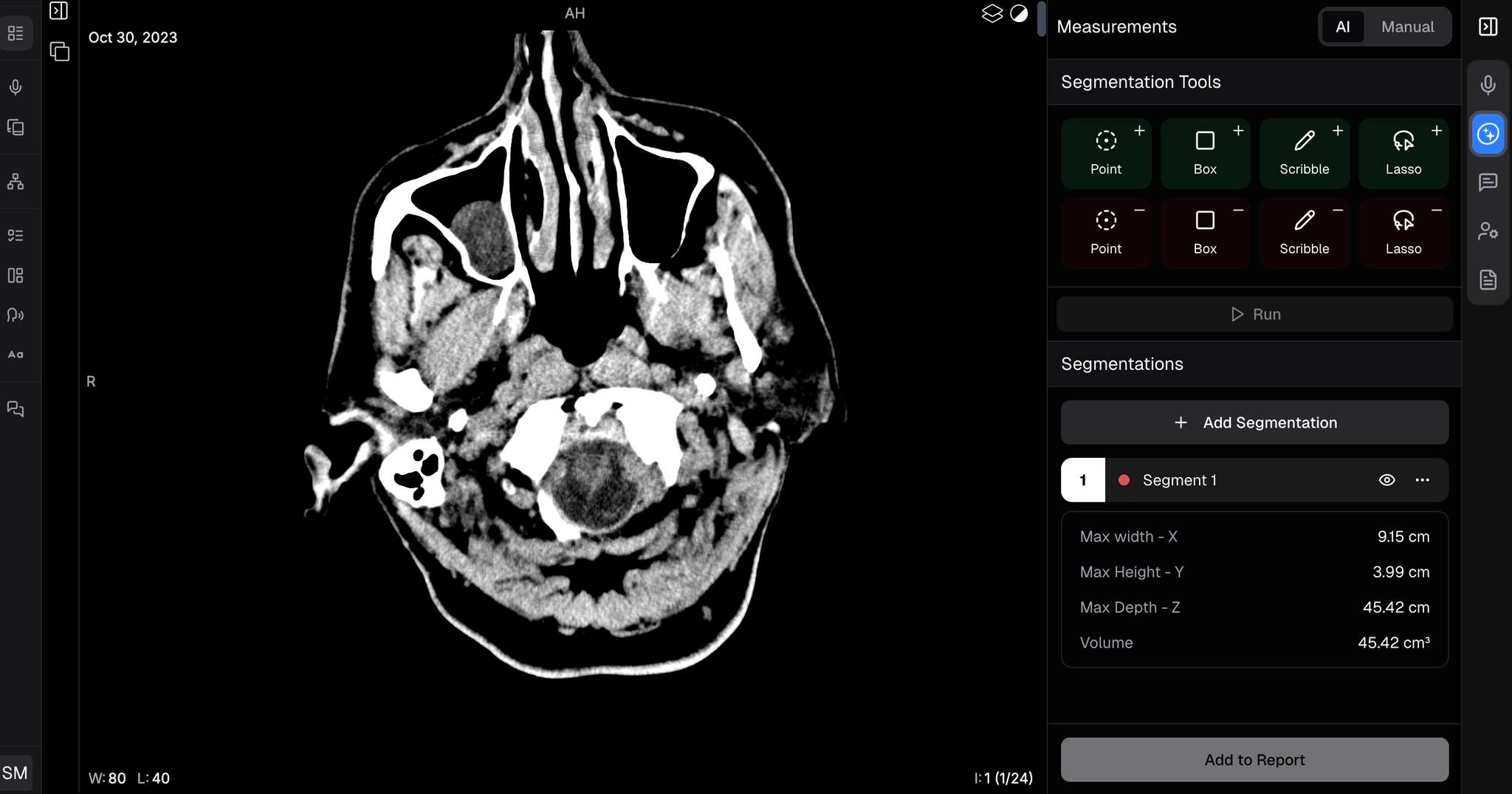
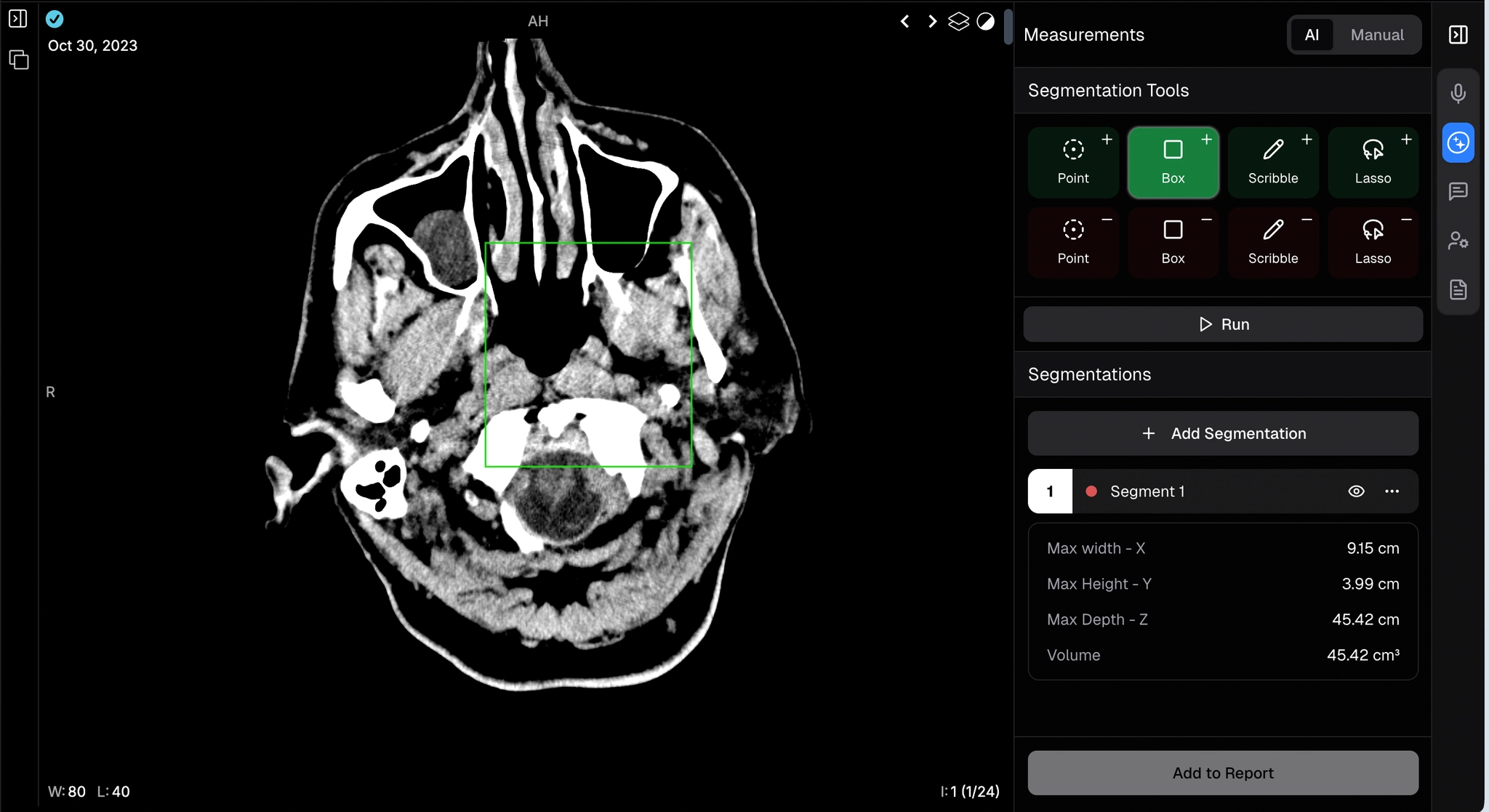
- For complex lesions, add multiple points to outline the shape, or use the box tool to draw a rectangle around the area.
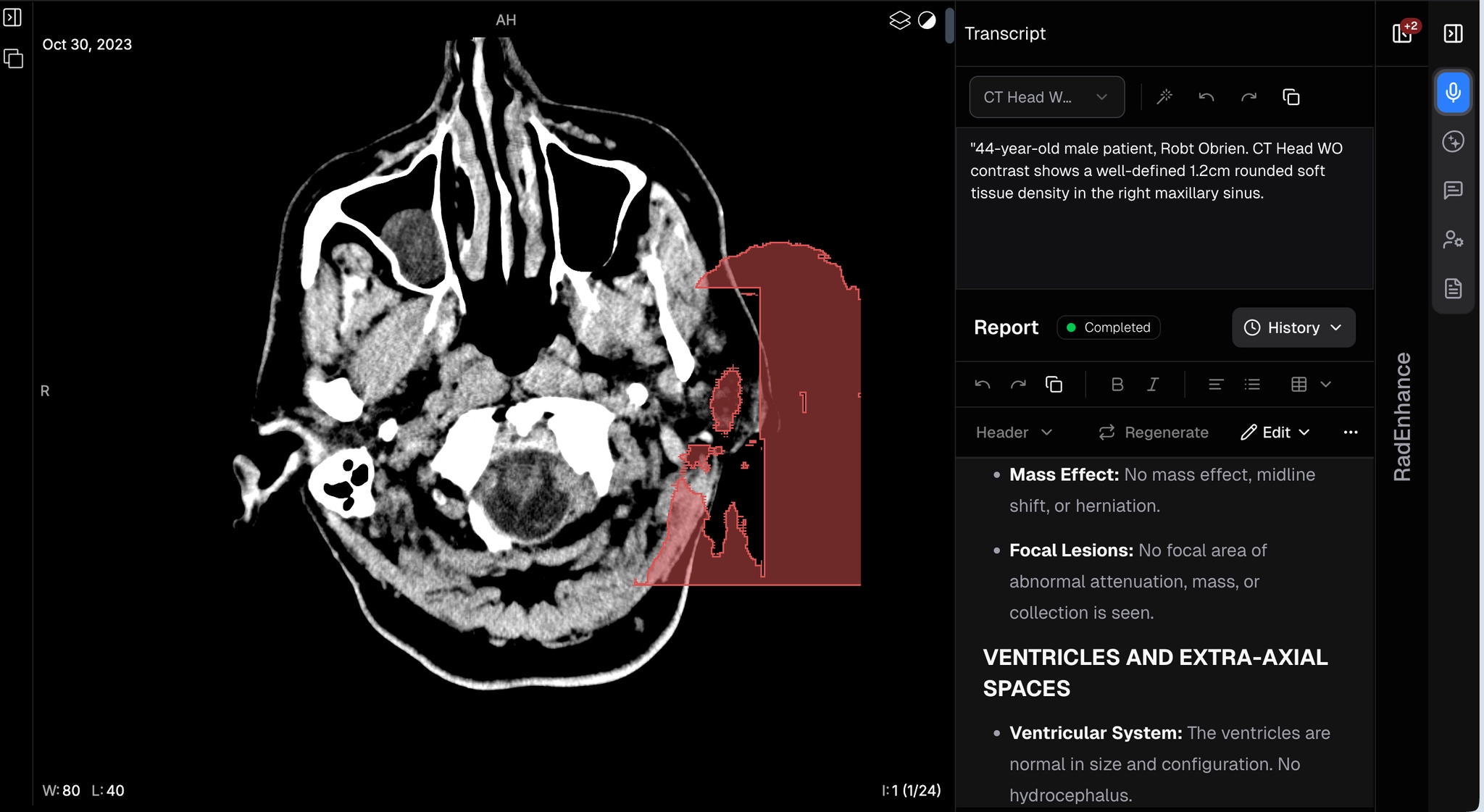
- Click Run. The AI will display the overlay along with key metrics such as width, height, depth, and volume.
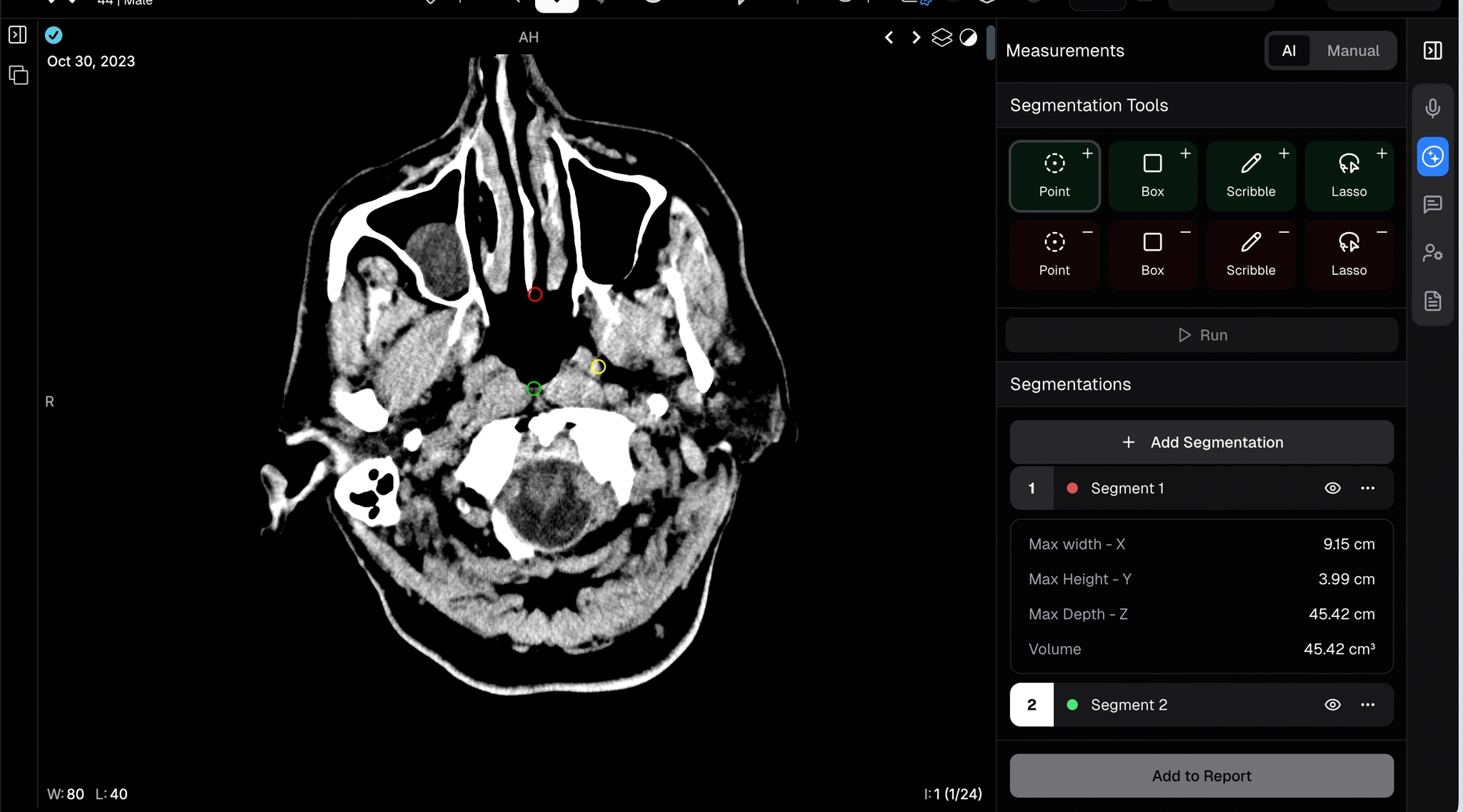
- To adjust the overlay, select the negative point or box option, click the area to remove, then press Run again to update the overlay and regenerate the measurements.
- To add a second overlay, click Add Segmentation and repeat the process.
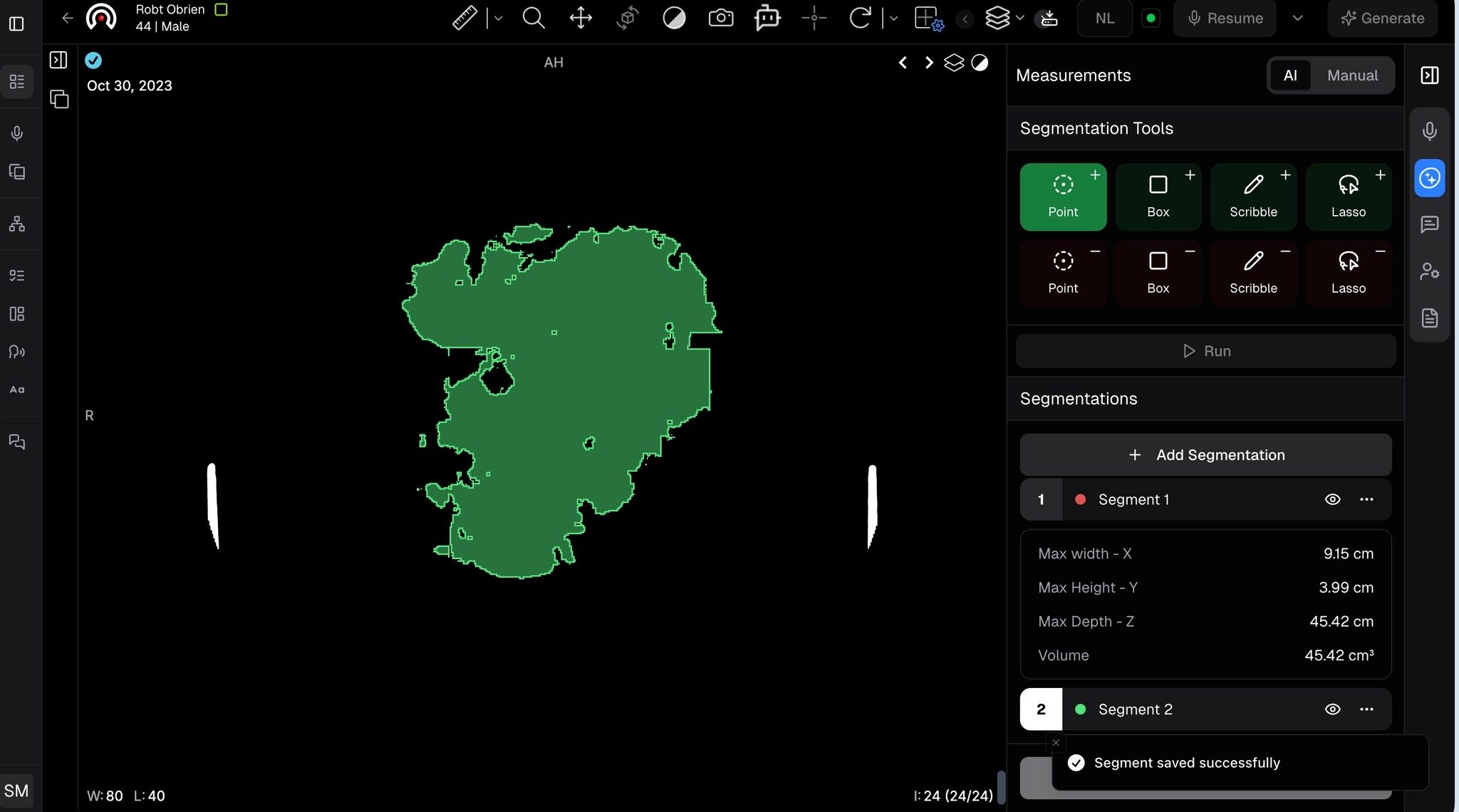
- When finished, click Add to Report. Wait a few seconds for processing, measurements will appear in the Focal Lesions section of the report.