Create Snippets
Build voice-triggered text snippets with Verbatim, Replace, or Enhance integration modes.
Updated
Add custom text in clinical notes via Intelligent Trigger Workflows
- From the left side of the main menu within Customization Studio, select "Snippets".
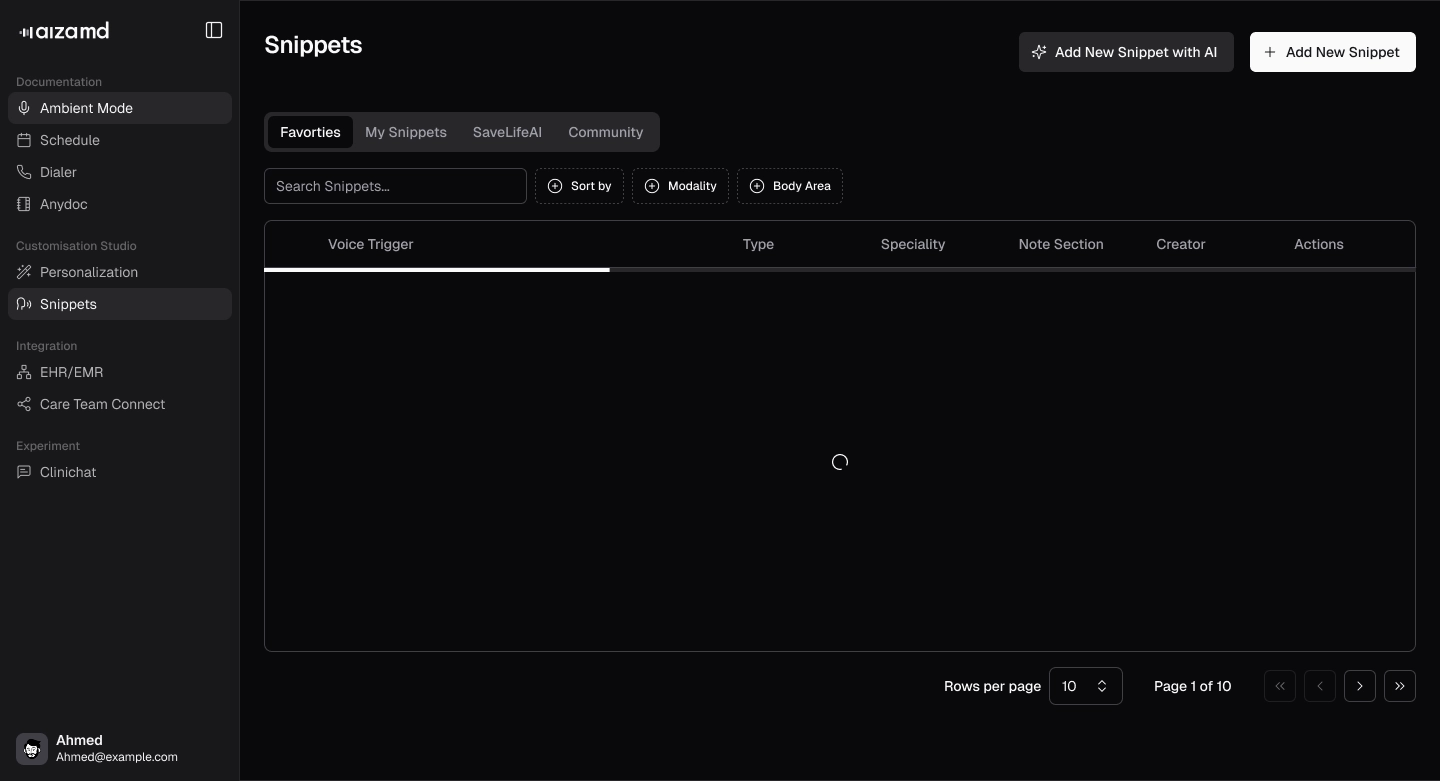
- To add a new snippet, click on the Add New Snippet button.
.webp)
- Enter the Voice Trigger, then select the Type, Specialty, Use, and Note Section from the dropdown lists.
Key Tip
When creating or editing a snippet, select your preferred integration method in the Use section from among three options:
- Verbatim: Appends your snippet to the end of the existing subjective section.
- Replace: Overwrites the entire subjective section (based on selected specialty) with your snippet.
- Enhance: Intelligently merges your snippet with the AI-generated subjective section into one cohesive block.
- Press Save.
.webp)
.webp)
- Snippets can be marked as Favorites by pressing the star. The list will be viewable in Favorites.
.webp)
- In My Snippets, user-created snippets appear. All snippets can be searched for or viewed here.
.webp)